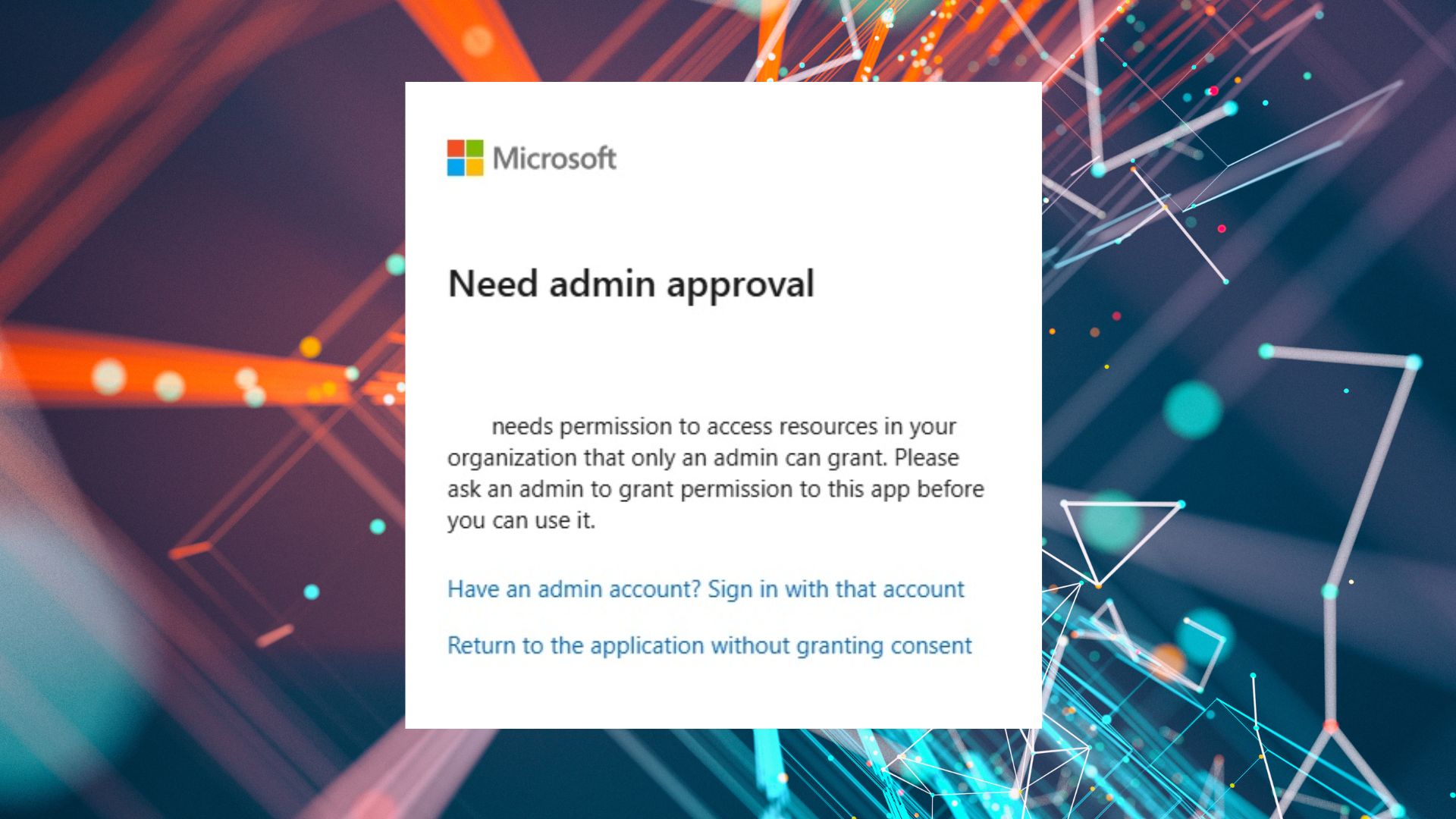
Why the need for Azure Admin approval
Many Business Central partners encounter the same issue: a customer tries to activate an S2S connection but receives the message “Azure admin approval required”. Logically, you would expect Business Central to prompt the administrator for permission, but that does not happen. Instead, the customer must open a separate admin‑consent URL. This blog is about the message Need Admin approval in Azure.
In this blog, I clearly explain why Business Central cannot display an approval prompt and how to let customers easily give admin consent themselves via a secure URL. The explanation is SEO‑friendly, written actively, and aimed at IT professionals working with Business Central SaaS.
Why Business Central cannot show an Admin approval prompt
Business Central uses a client credentials flow for S2S authentication. This means:
- there is no user involved
- Application permissions are required
- these permissions require tenant‑wide admin consent
Microsoft does not allow such permissions to be approved through an interactive login flow. Therefore, Business Central can never display a pop‑up in which an administrator grants permission. The normal OAuth flow is automatically blocked and ends with:
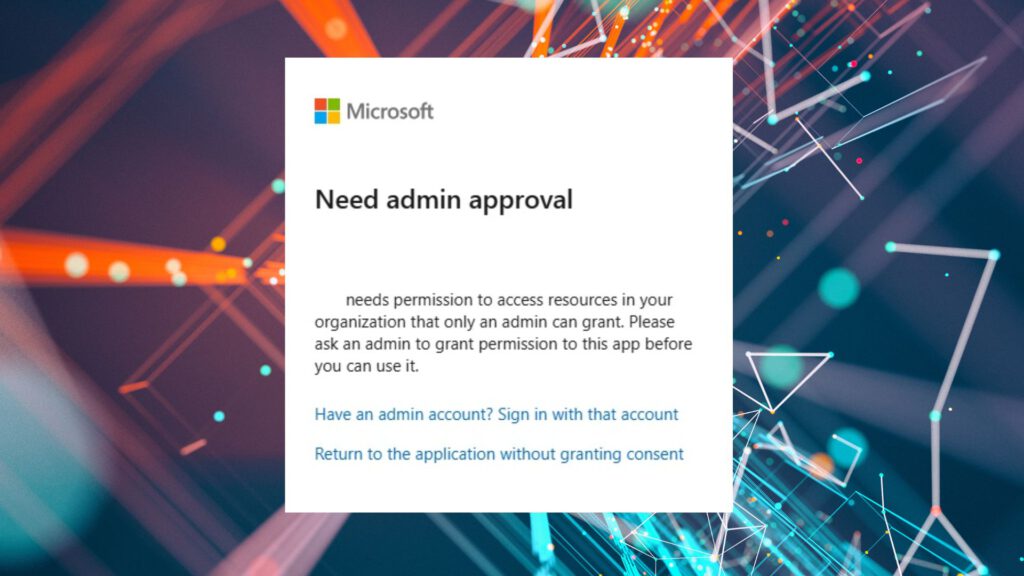
Why a URL does resolves the need for Admin approval in Azure
For multitenant applications, each customer tenant must explicitly give permission via the special adminconsent endpoint. Only this endpoint is allowed to approve Application permissions.
The structure of such a URL looks like this:
https://login.microsoftonline.com/common/adminconsent?client_id=YOUR-CLIENT-ID&redirect_uri=YOUR-REDIRECT-URIBusiness Central uses by default:
https://businesscentral.dynamics.com/OAuthLanding.htmAs the redirect URI.
How a Business Central User can give Admin consent
You don’t need to explain any complicated steps. The customer only needs to:
- Log in as a Global Administrator
- Open the admin‑consent URL
- Accept the requested permissions
After that, the S2S connection is activated immediately.
Example of a complete consent URL:
https://login.microsoftonline.com/common/adminconsent?client_id=xxxxxx-yyyyy-1234-a936-5678910&redirect_uri=https://businesscentral.dynamics.com/OAuthLanding.htmThis link can be safely shared with the customer. After approval, the administrator is automatically redirected back to Business Central.
Text you can send directly to customers IT admin
Dear administrator,
To activate our Business Central connection, a one‑time admin consent is required.
Click the link below while you are logged in as a Global Administrator:
https://login.microsoftonline.com/common/adminconsent?client_id=xxxxxx-yyyyy-1234-a936-5678910&redirect_uri=https://businesscentral.dynamics.com/OAuthLanding.htmAfter accepting, the connection is active immediately.
Users do not need to do anything further.
Kind regards,
Conclusion
Business Central cannot request admin approval because S2S authentication works with Application permissions, and these may only be approved via the admin consent endpoint. That is why a separate URL is required. By providing this URL to the customer, the administrator can easily and safely grant permission.
If you require more information about the consent approval workflow, you can click here. If you have questions about his blog post, you can contact me via the contact form.