Automatically filling fields with Copilot in Business Central: What you need to know
Microsoft continues to integrate Copilot into Business Central step by step, and one of the most interesting new capabilities is Automatic filling fields with CoPilot. This feature helps users create or modify records more quickly by providing smart suggestions for empty fields. In this blog, I’ll walk you through what the feature does, how to use it, and what to watch out for.
What exactly does automatically filling fields with Copilot do?
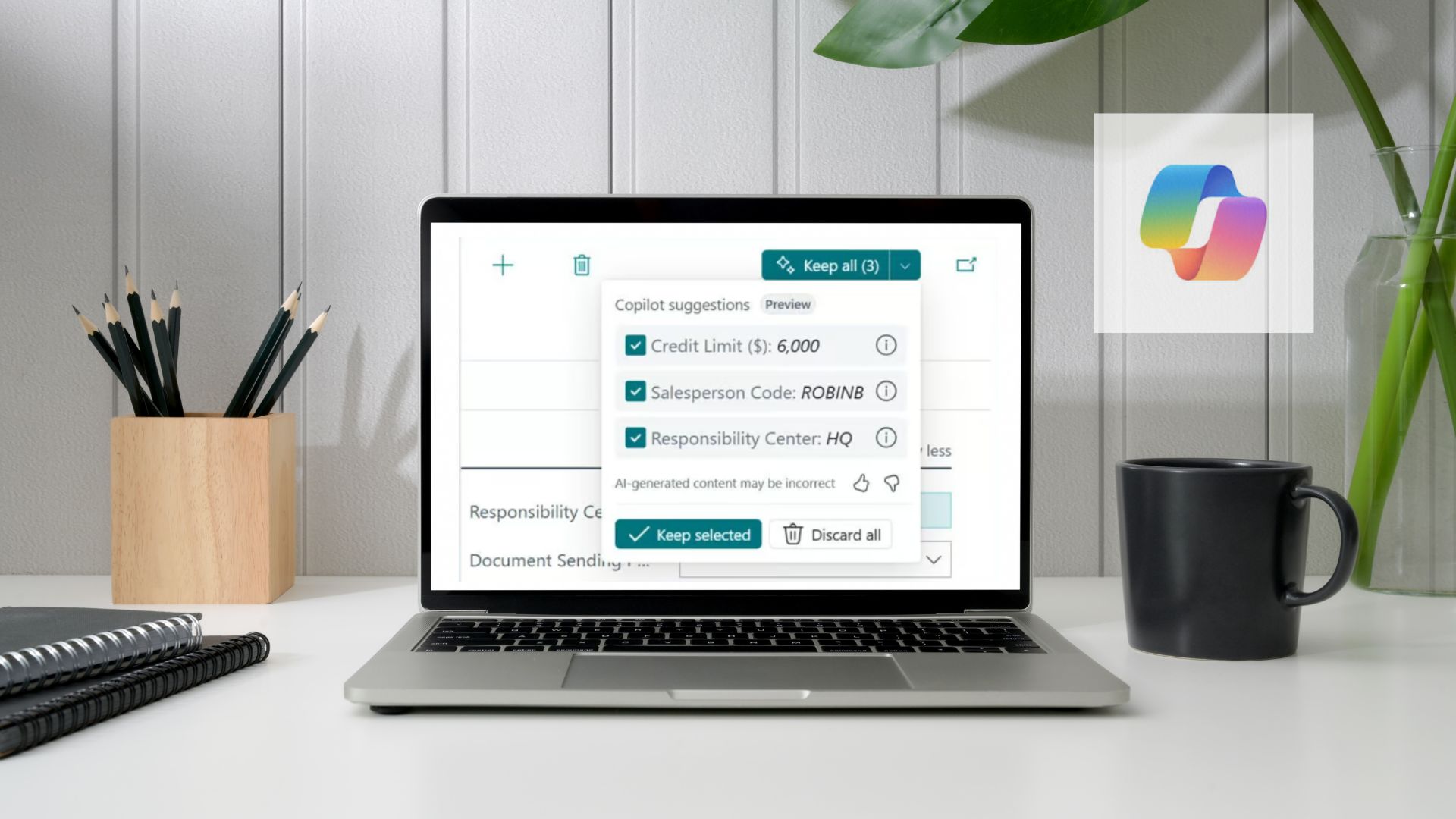
Automatic field filling assists you when entering data into editable, empty fields on card and document pages. Think of customer cards, vendor cards, or sales orders. Copilot analyzes available data and proposes values that you can accept, modify, or ignore.
Suggestions can come from:
- Your own Business Central data
- AI‑generated values
- Public information from the web (if enabled)
Important to know: Copilot never saves anything automatically. You always decide which suggestions are stored.
A preview feature — but production‑ready
This functionality is available as a production‑ready preview. That means you can already use it in live environments, although Microsoft may still make changes. Additional preview terms apply.
Requirements for using automatic field filling with Copilot
To use automatic field filling:
- The feature must be enabled in the Copilot and agent settings.
- You need the appropriate permissions.
- For web‑based suggestions, Bing Search must be activated.
Note: The feature is officially validated only for English. It often works fine in other languages, but quality may vary.
Where does automatically filling fields with CoPilot work — and where not?
Available on:
- Card pages (e.g., customers, vendors)
- Document pages (e.g., sales orders)
- Editable fields in FastTabs
- Fields added by extensions
Not available on:
- List pages
- Worksheets (such as warehouse worksheets)
- Setup pages and assisted setup pages
- Dialog boxes
Never available for certain field types:
- Non‑editable fields
- FactBox fields
- Rows/columns in subgrids
- Multi‑line text fields
- Masked fields (passwords, secrets)
- Date and time fields
- Currency code fields
- Unique identifier fields (such as number series)
- Toggle switches
Some fields, such as address fields, require Bing Search to be enabled before Copilot can provide suggestions.
How do you use automatic field filling?
- Open a record in Edit mode.
- Select a field where automatic filling is available.
- Click the Copilot icon or press Alt + I.
- Copilot displays suggestions in italics inside the field.
For each field, you can:
- Accept (Enter)
- Ignore (Delete)
- View details (Alt + ↑)
- Modify (F2)
Want to process all suggestions at once? Use the Keep All button.
If you leave the page while suggestions are still pending, Copilot will prompt you to accept or ignore them first.
How does Copilot decide which value to suggest?
Copilot uses several mechanisms to generate suggestions. Not everything comes from AI — sometimes it’s simply smart reuse of existing data.
| Mechanism | Meaning |
|---|---|
| Most used | The value most commonly used in your company. |
| Last used | The last selected value for a related record. |
| Lookup selection | AI chooses from a short list of possible values. |
| AI‑generated | AI proposes a value based on general knowledge. |
| Web Search | Copilot retrieves public information from the internet. |
Copilot always uses AI to determine which mechanism is most relevant.
Web suggestions: a powerful addition
As of update 26.4, Copilot can also use web data (initially only in Sandbox). This works especially well for fields that typically contain public information, such as:
- Address details
- Phone numbers
- Websites
- Registration numbers
A great example: create a vendor named Adventure Works with country code US. Copilot will automatically retrieve details from Microsoft’s official demo website.
How does this compare to existing Business Central functionality?
Business Central already includes features that automatically set values, such as:
- Customer templates
- Default values in business processes
- Validations that automatically fill related fields
The difference:
- These features save values immediately.
- Copilot never saves anything automatically — you decide.
If both systems try to set a value, the traditional Business Central logic takes precedence and the Copilot suggestion is ignored.
Conclusion
Automatic field filling with Copilot is a powerful new addition to Business Central. It speeds up data entry, reduces errors, and makes daily work more efficient — especially when you enable web suggestions. Because you always remain in control of what gets saved, your data quality stays intact.
This preview feature clearly shows where Business Central is heading: a future where AI supports your daily tasks without requiring extra effort from you.
For the Business Central roadmap, click here. If you have questions about this blog post, feel free to contact me via the contact form.